
Slow office Wi-Fi? What to check before upgrading your internet
A practical checklist for business owners: record the interruption, compare devices and connections, and give your IT partner useful evidence before investing in an upgrade.
By Actif Team
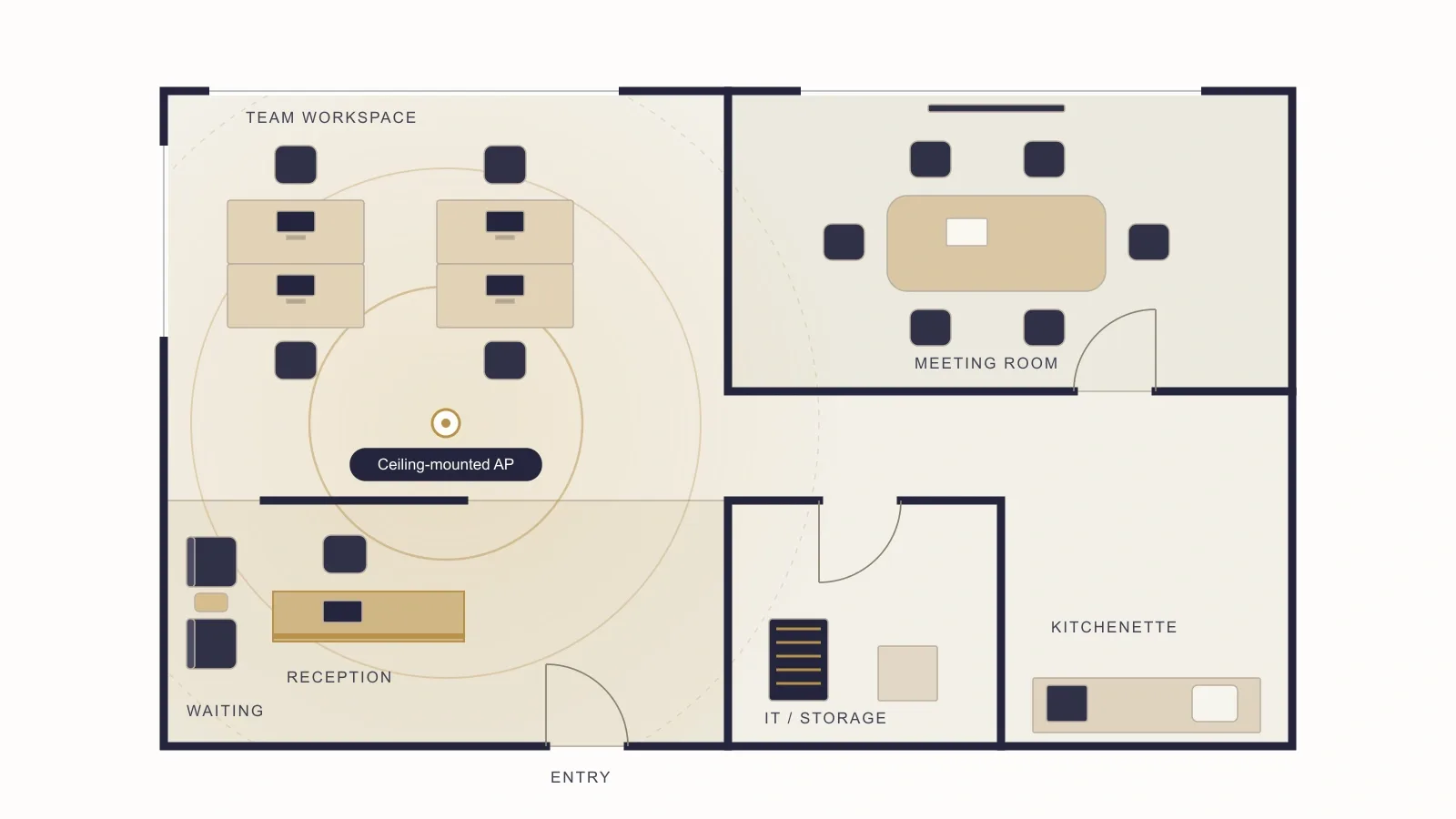
A faster internet plan will not fix every office network problem. Before buying more bandwidth or replacing equipment, establish who is affected, where it happens and which work is interrupted. A few consistent observations can make the next support conversation much more productive.
Start with the work that is being interrupted
“The internet is slow” can describe very different experiences. A video meeting drops in one room. A shared document takes a long time to open. A reception workstation loses its connection while everyone else continues working. Describe the task and the interruption first, without deciding which component is responsible.
Choose one recurring example that matters to the business. Record the approximate time, location, device and application. Include what you expected to happen and what actually happened. This is a practical starting point for business Wi-Fi troubleshooting, not a requirement to diagnose the network yourself.
Compare one thing at a time
| Comparison | What to record |
|---|---|
| Another device, same task | Whether the problem occurs on both devices in the same location. |
| Wired and Wi-Fi, where available | Whether the same task behaves differently through an approved wired connection. |
| Another room | Whether the interruption follows a particular area or happens throughout the office. |
| Another application | Whether one service struggles while other work continues normally. |
Make comparisons close together in time and keep other conditions as similar as practical. If you change the device, room and application all at once, it becomes harder to tell which difference mattered. An intermittent fault may also disappear during a test, so note that a successful comparison does not prove the issue is resolved.
Use existing, approved connections. Leave firewall rules, access-point settings and shared equipment changes to the person responsible for the network. Restarting a shared router during the working day can interrupt other people and remove useful diagnostic context.
Separate internet service from office Wi-Fi
Your internet connection brings external services into the business. Wi-Fi connects wireless devices to the local network. Performance can be affected at either stage, as well as by the device or application. A wireless connection indicator alone does not establish that an application will work reliably.
Room layout, obstructions, access-point placement and the applications people use can all matter when assessing wireless coverage. A useful assessment considers how your team works in each area, rather than relying only on the internet plan’s advertised speed.
If the problem consistently occurs in a meeting room but not at a nearby wired workstation, that is useful evidence for a wireless investigation. It is not, by itself, proof that buying another access point will solve it. Your IT partner should check the conditions before recommending equipment.
Create a short issue log
A small shared log is often more useful than several separate messages saying something broke. Use one entry per incident and keep it short enough that staff will actually complete it. Avoid passwords, client records or screenshots containing sensitive information.
- Date, time and approximate duration.
- Room or work area, device and connection type.
- Application and task affected.
- What happened, including the wording of any non-sensitive error.
- Who else was affected and whether another device or connection worked.
- Any recent change you know about, without assuming it caused the problem.
For example: “Tuesday, 10:15 a.m., meeting room, laptop on office Wi-Fi. Video froze twice during a client call. The same meeting continued on a colleague’s wired workstation.” This illustrative entry is more actionable than “bad internet again” and does not require technical terminology.
Decide what to do next
Escalate promptly when interruptions affect payments, customer communications or multiple staff members. For recurring problems, ask your IT partner to review the observations, identify what needs testing and explain the proposed next step. A useful recommendation should distinguish what has been confirmed from what remains uncertain.
Before approving an upgrade, agree on how improvement will be checked. That might mean repeating a meeting-room call, testing a previously affected workstation or observing normal work over an agreed period. Record the original symptom and the follow-up result. A new device or a completed installation is not the same as a verified improvement.
If you are deciding between ongoing support and a focused engagement, our managed IT versus one-time support guide explains the broader choice. Actif provides business IT support, including network troubleshooting and practical improvement planning for organizations in Walnut Creek, Concord, Pleasant Hill and the wider Bay Area.
Want to talk about your own challenge?
Every engagement starts with a free conversation.
Request a Free Consultation